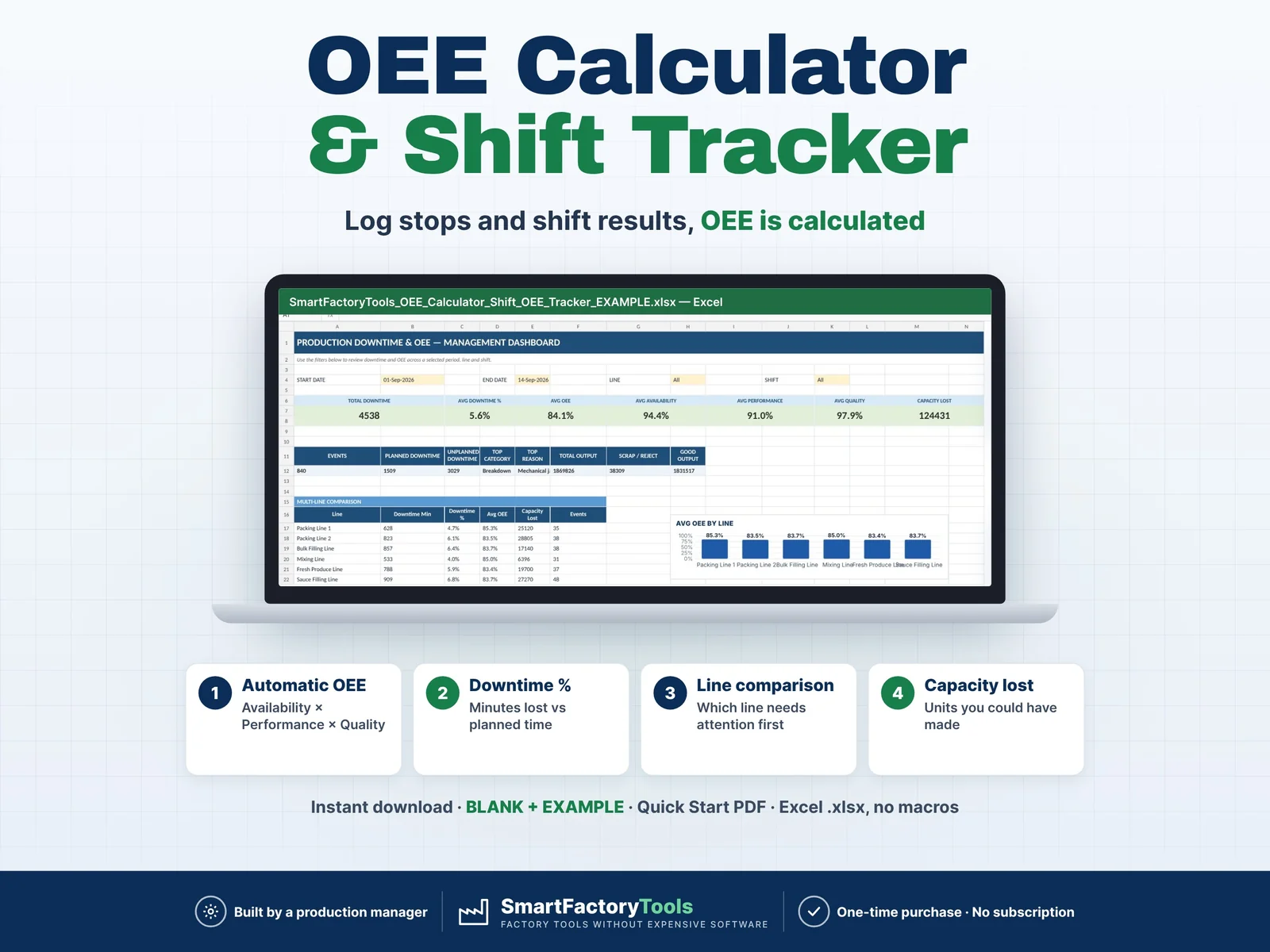
- Automatic OEE = availability × performance × quality
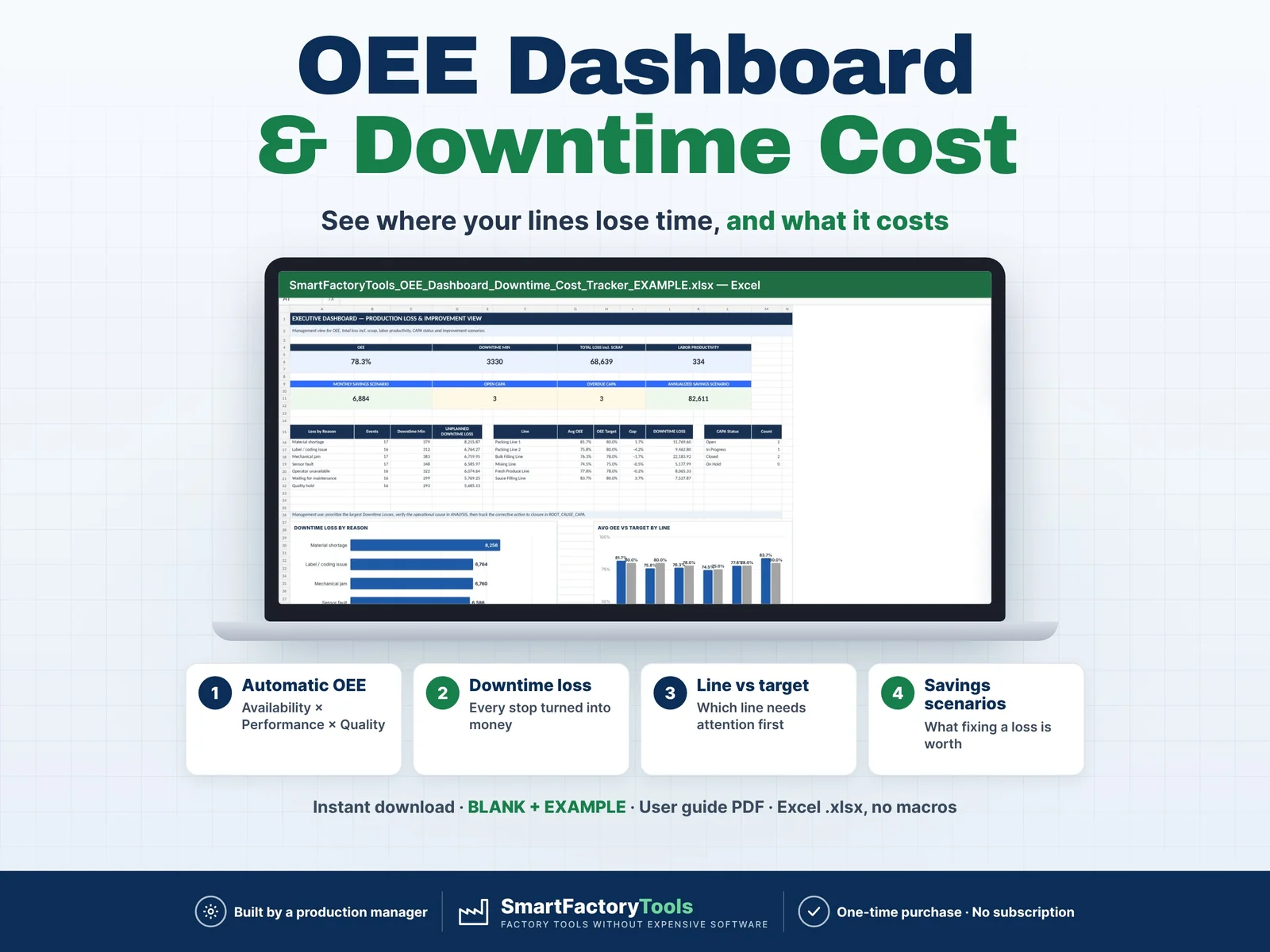
- Every downtime minute turned into money
- Savings scenarios – what fixing a loss is worth
- Instant download: BLANK + EXAMPLE · User guide PDF
- Built by a production manager · one-time purchase, no subscription, no macros
▶ Requires Microsoft Excel desktop on Windows or Mac — Excel 2021 or Microsoft 365 recommended. Not for Google Sheets, Apple Numbers or mobile apps.
Manufacturing OEE Tracker Excel Template for production downtime, OEE analysis, CAPA, MTTR/MTBF, cost impact and improvement savings.
SmartFactoryTools OEE Dashboard & Downtime Cost Tracker is a practical Microsoft Excel workbook built for production managers, supervisors, maintenance teams, Lean / Continuous Improvement professionals and manufacturing businesses that need more than a simple downtime log.
Record daily production stops, enter shift results and let the workbook calculate key production KPIs automatically — then use Pareto analysis, root cause tracking, reliability metrics and financial scenarios to decide what to improve next.
WHAT THIS TEMPLATE HELPS YOU DO
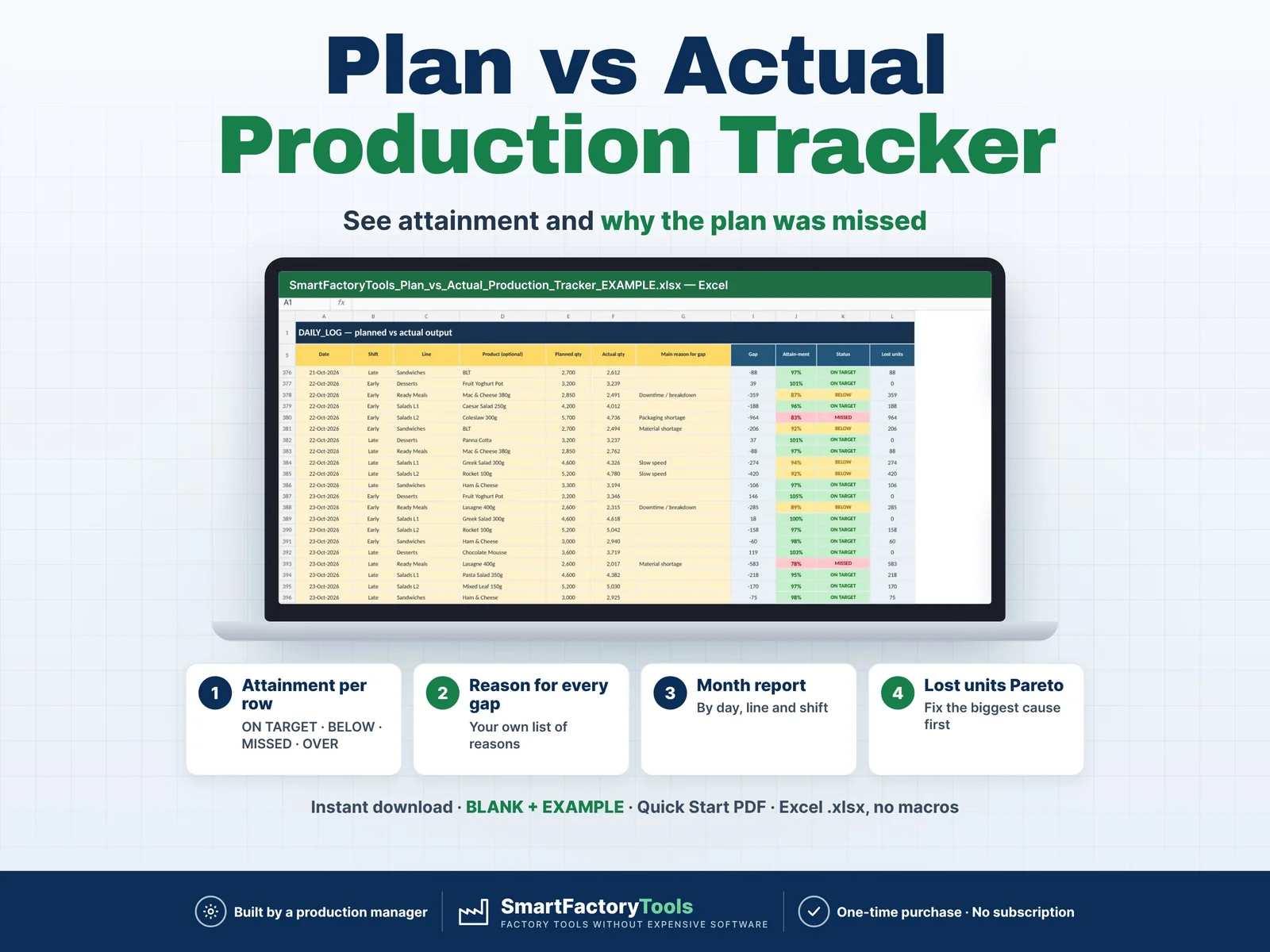
- Track planned and unplanned downtime by date, shift, production line, SKU and reason
- Calculate Availability, Performance, Quality and OEE automatically
- Monitor production output, scrap / rejects and labor productivity
- Estimate lost production capacity caused by downtime
- Calculate downtime cost and lost contribution
- Analyze downtime by reason, category, production line and 6M root-cause group
- Identify the largest losses using Pareto analysis
- Track MTTR and MTBF by production line
- Create and follow Root Cause / CAPA actions
- Assign CAPA owners, due dates, status and effectiveness checks
- Identify improvement opportunities from unplanned losses
- Model downtime-reduction scenarios
- Estimate monthly and annualized savings
- Calculate investment payback and first-year benefit
- Review operational and executive dashboards
- Use built-in data-quality checks to catch common input problems
WHAT YOU RECEIVE
- Blank Workbook — .XLSX
Ready for your own production data.
- Example Workbook — .XLSX
Completed with sample manufacturing data so you can see how the system works before entering your own information.
- Detailed User Guide — PDF
Step-by-step instructions explaining setup, every major input field, calculations, KPI logic, CAPA workflow, financial assumptions, monthly workflow and common mistakes.
SETUP — CUSTOMIZE IT TO YOUR FACTORY
The SETUP sheet contains the master data used throughout the workbook.
You can configure:
Production Lines
Production line name, nominal speed, default planned production minutes, OEE target, downtime target, Cost / Production Hour, crew size and labor cost per person/hour.
Downtime Reasons
Create your own downtime reasons and assign a default category and 6M root-cause classification.
SKU / Product Master
Use your own SKU or ERP item codes, product names and default production lines.
Example:
10057 — Russian Salad 250 g
Each SKU can also include:
Contribution / Good Unit — estimated contribution margin lost for each unit that could not be produced because of downtime.
Scrap Cost / Unit — estimated cost of one rejected or scrapped unit.
These values do not need to be equal. Scrap Cost can be higher than Contribution / Good Unit.
DOWNTIME LOG
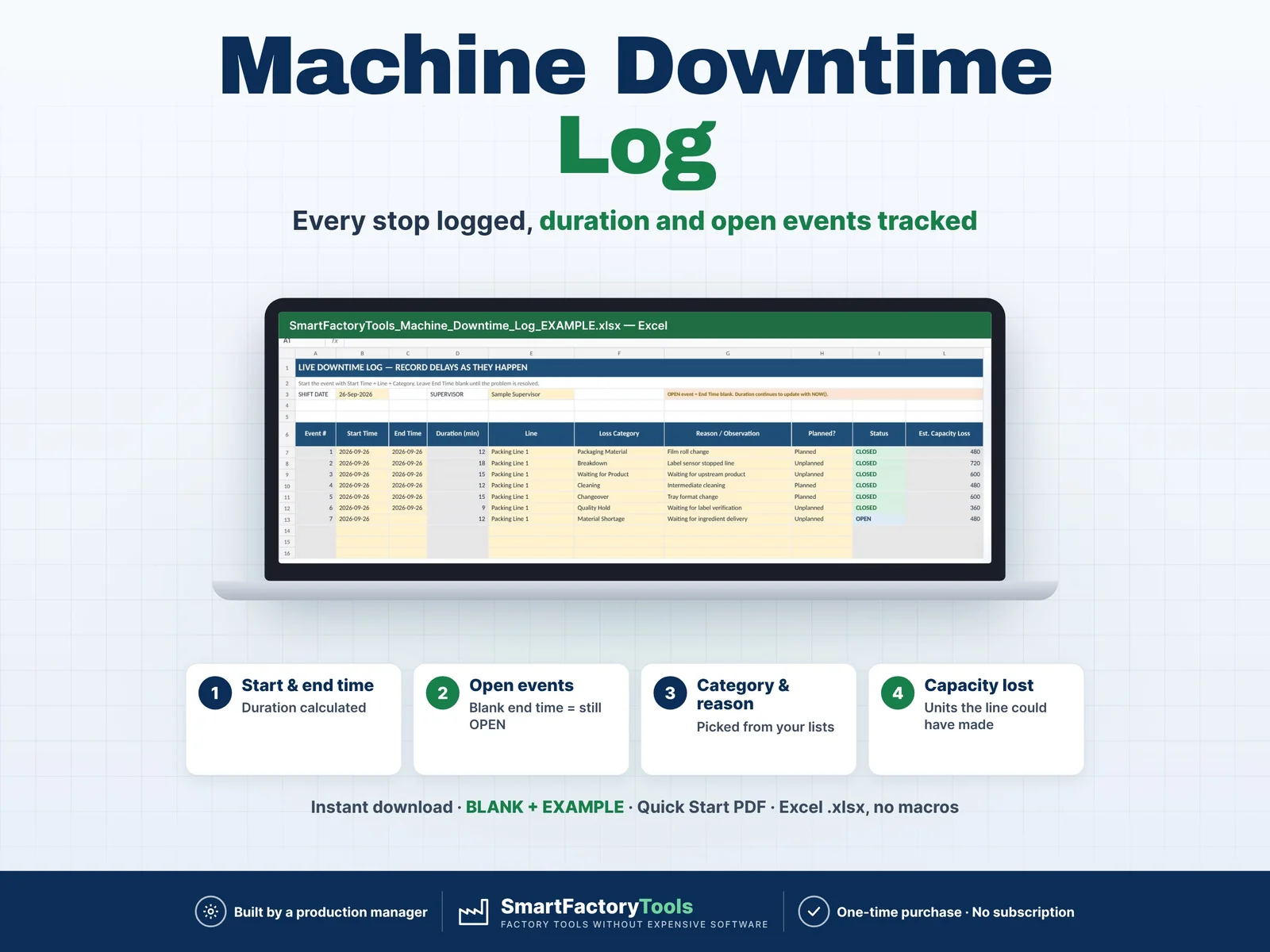
The DOWNTIME_LOG is designed for structured daily event recording.
The workbook provides prepared downtime-event slots for each day.
Enter information such as:
Date
Shift
Supervisor
Start Time
End Time
Production Line
SKU
Downtime Reason
Planned / Unplanned
Status
6M Category
Root Cause / Note
CAPA Required
CAPA ID
The workbook automatically calculates or retrieves:
Duration
Product
Downtime Category
Estimated Capacity Loss
Cost / Hour
Downtime Cost
Contribution / Unit
Lost Contribution
Downtime Loss
IMPORTANT — COST / PRODUCTION HOUR
Cost / Production Hour is NOT the sales value produced per hour.
For example:
3,000 kg/hour × €3/kg = €9,000/hour of production value.
That €9,000 should not automatically be entered as Cost / Production Hour.
Use this field for the relevant hourly production cost associated with operating or losing time on that line, based on your own costing method.
Lost contribution is calculated separately through the SKU's Contribution / Good Unit.
This separation helps avoid counting the same economic loss twice.
SHIFT DATA & AUTOMATIC OEE
For each active Line × Shift combination, enter:
Supervisor
Planned Production Minutes
Total Output
Reject / Scrap
The workbook calculates:
Operating Time
Availability
Performance
Quality
OEE
Good Output
Downtime
Labor Hours
Good Units / Labor Hour
Labor Cost
Scrap Cost
Total Loss
OEE vs Target
OEE = Availability × Performance × Quality
Availability shows how much planned production time was actually available for production.
Performance compares actual output against theoretical output while the line was operating.
Quality compares good output against total output.
IMPORTANT — OUTPUT UNITS & LABOR PRODUCTIVITY
Each production line may work in its natural production unit, such as:
pcs
kg
packs
containers
batches
However, Labor Productivity = Good Output / Labor Hours.
If one line records output in pcs and another in kg, their Labor Productivity values should not be directly compared as though they use the same unit.
For meaningful comparison, use Labor Productivity within a line or between lines using the same output unit.
The OEE calculation itself can still work correctly as long as the line's Nominal Speed and Total Output use the same unit.
ROOT CAUSE & CAPA
The workbook includes a dedicated corrective-action tracker for significant or recurring losses.
When a downtime event requires CAPA:
Set CAPA Required? = Yes
Assign a unique CAPA ID, for example:
CAPA-2026-001
Then enter the same CAPA ID in ROOT_CAUSE_CAPA.
The relevant event information is linked from the downtime log, while the CAPA sheet is used to manage:
6M Category
Root Cause
Immediate Action
Corrective Action
Preventive Action
Owner
Due Date
Status
Completion Date
Effectiveness Check
Verified By
This allows the workbook to move beyond simply recording downtime and support structured follow-up.
6M ROOT CAUSE CLASSIFICATION
Use the included 6M categories to group recurring causes:
Man
Machine
Method
Material
Measurement
Environment
This helps identify whether repeated production losses are mainly related to people, equipment, process methods, materials, measurement systems or working conditions.
RELIABILITY ANALYSIS
The Reliability Analysis helps maintenance and production teams review equipment failures using:
MTTR — Mean Time To Repair
Shows the average time required to restore equipment after a breakdown.
Lower MTTR is generally better.
MTBF — Mean Time Between Failures
Shows the average operating time between breakdown events.
Higher MTBF is generally better.
Use these metrics together to distinguish equipment that fails frequently from equipment that takes too long to recover.
IMPROVEMENT OPPORTUNITIES
The workbook identifies major unplanned downtime reasons and allows you to enter a realistic Reduction Scenario %.
Example:
Current downtime loss: €4,000/month
Reduction scenario: 20%
Estimated monthly savings scenario:
€800
These values are scenarios, not guaranteed savings.
Planned stops are not treated as automatic improvement savings.
WHAT-IF SAVINGS
Use the What-If section to evaluate an improvement before spending money.
Select a downtime reason and enter:
Reduction Scenario %
Improvement Investment
The workbook estimates:
Recovered Minutes
Monthly Savings Scenario
Annualized Savings Scenario
Net First-Year Benefit
Payback Period
A second scenario section allows you to test potential improvements in Availability, Performance and Quality.
DASHBOARDS & ANALYSIS
The workbook includes operational and management-level views for:
OEE
Availability
Performance
Quality
Total Downtime
Planned vs Unplanned Downtime
Downtime Loss
Capacity Loss
Top Downtime Reasons
Line Comparison
Pareto Analysis
6M Root Cause Analysis
CAPA Status
Reliability
Improvement Savings Scenarios
Use the operational dashboard for daily or weekly production reviews and the Executive Dashboard for higher-level management review.
MONTHLY WORKFLOW
The workbook is designed as a practical monthly management tool.
Recommended workflow:
Create a fresh copy of the Blank workbook for every reporting month.
Set the new Month Start before entering data.
Keep the completed previous month as your archive.
Do not change Month Start after production data has already been entered into that monthly workbook.
EDITABLE MASTER DATA
Production Line, Downtime Reason and SKU masters are expandable.
Add new rows directly beneath the existing Excel tables.
Do not rename master-table headers or add/delete table columns, because formulas and lookups depend on the existing structure.
FILE FORMAT & REQUIREMENTS
Microsoft Excel .XLSX
No VBA
No macros
No add-ins required
Designed and tested for Microsoft Excel desktop.
Microsoft Excel 365 / Excel 2021 or newer is recommended.
Google Sheets, LibreOffice and other spreadsheet applications are not tested or supported and may not preserve formulas, charts, formatting or data validation exactly as intended.
IMPORTANT BEFORE PURCHASE
This is a digital Excel management tool. It is not MES software and does not connect automatically to machines, PLCs, ERP systems or production databases.
Production and downtime information is entered manually by the user.
Results depend on the accuracy of your production data, nominal speeds, cost assumptions and SKU values.
Financial results and savings scenarios are management estimates and should not be treated as accounting, tax or investment advice.
Screenshots contain demonstration data for presentation purposes.
IDEAL FOR
Production Managers
Plant Managers
Operations Managers
Production Supervisors
Maintenance Managers
Manufacturing Engineers
Industrial Engineers
Continuous Improvement Teams
Lean Manufacturing Teams
Quality Teams
Small and Mid-Sized Manufacturers
Manufacturing Consultants
DIGITAL PRODUCT
This is an instant digital download.
No physical product will be shipped.
Please review the included User Guide and the Example workbook before entering your live production data.
License and permitted use are described in the LICENSE sheet inside the workbook.
 Maintenance